A group photo can move from a private chat to a public feed in minutes. The crop gets tighter, the lighting gets brighter, and a distracting object disappears. Yet the people in the frame may never see the revised version before it starts representing their friendship, family, workplace, or community to strangers.
Community-photo approval includes everyone whose identity remains visible. An AI Photo Editor can create a candidate, but the people pictured remain stakeholders in how their faces, clothing, setting, and shared context are presented. Cosmetic polish should never outrank their consent.
Every Face Changes the Approval Chain
A solo portrait usually has one clear subject. A reunion, birthday, barangay event, office gathering, or fan meet may have ten. The uploader may own the file, but that does not settle whether every person wants a public post, a tight crop, or a heavily restyled version. Count the people whose identity is visible before planning the edit.
Ask Who Agreed to the Original Audience
Consent is tied to audience and purpose. Someone may be comfortable appearing in a family group chat but not on an open page. A photo taken for documentation may not be approved for a promotional graphic. Record where the original was shared and what the proposed public use will be. If the audience changes, ask again.
Do not treat silence as approval when the edit makes a person more prominent. A tighter crop can turn a background participant into the main subject even when no facial feature changes.
Protect Clothing Signs and Cultural Details
Community identity also sits outside faces. Uniform patches, school colors, festival decorations, hand signs, food, and location details can carry meaning. List the elements that participants consider important before removing clutter or changing the scene. A cleaner background is not an improvement if it removes the detail that explains why everyone gathered.
This list should come from people who understand the event, not from guesses based on appearance. The editor’s role is to preserve agreed context, not to invent a more convenient story.
Approval also belongs to a specific version. A participant who accepted the original wide photo has not automatically accepted a close crop that centers their face. Show the actual candidate, not a description such as “just cleaned it up.” People need to see how the edit changes emphasis before they can make an informed choice.
Define the Edit That Stays Within Consent
Write one sentence that describes the allowed change. “Remove the empty plastic bottle beside the table while keeping every person, banner, garment, and food item unchanged” is reviewable. “Make everyone look better” is not. The second instruction hides decisions about skin, body shape, age, clothing, and expression that may never have been approved.
Keep Cleanup Outside Identity Bearing Areas
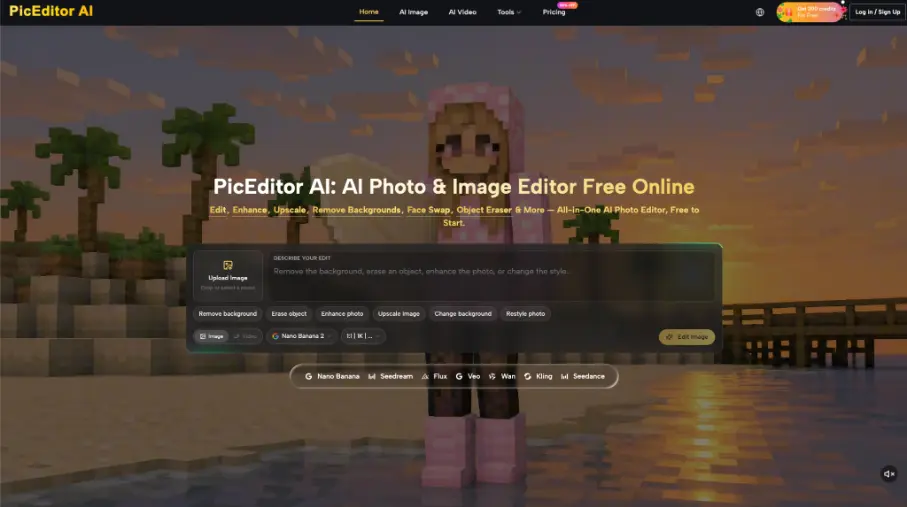
PicEditor AI accepts JPEG, PNG, and WebP images up to 30 MB and offers routes such as Erase Object, Enhance Photo, Change Background, and Restyle Photo. Use the narrowest route that matches the approved change. An AI photo enhancer candidate still needs a side-by-side check; an enhancement label does not prove that faces or cultural details stayed intact. AI photo enhancer output should be reviewed as a proposal, never as a more truthful version of the event.
Keep the original file next to the candidate. Compare eyes, mouth shape, hairline, jewelry, printed clothing, badges, and hands at full size. If a person appears different rather than merely clearer, stop and return to the source.
Reject Unapproved Changes to Skin and Body
Do not approve skin-lightening, body reshaping, age reduction, or expression changes unless the pictured person explicitly requested that exact edit. General consent to “clean up the photo” is too broad. These changes can turn a shared memory into a beauty judgment that the subject never asked to make.
The AI Photo Editor should receive a prompt that names what changes and what remains protected. This does not guarantee preservation. It creates a written boundary the reviewer can use when comparing the output.
For a group portrait, write the protected set in visible terms: keep all faces, skin tones, expressions, clothing patterns, hand positions, and the event banner unchanged; remove only the named distraction outside those areas. PicEditor AI can then produce a candidate for that narrow request. If the change crosses the boundary, the correct response is rejection, not a broader prompt that makes the edit harder to audit.
Check Context Before You Post the Candidate
A candidate can preserve every face and still mislead through crop or caption. Review the picture as a complete post, not as an isolated file. The approval check should cover three questions:
- Did every clearly identifiable person approve the public audience?
- Does the crop preserve the event and relationships shown in the source?
- Does the caption describe what is known without assigning motives or identities?
- Are children, home addresses, badges, or private documents exposed?
Compare the Crop with the Full Scene
A crop changes who appears central and who disappears. Place the public crop beside the full frame and ask what a stranger would infer from each one. If the crop removes the host, organizer, family elder, or event sign, it may create a different story even though the remaining pixels are accurate.
Use a wider crop when relationship and setting matter. Use a tighter crop only when all newly emphasized subjects approve that emphasis.
Check the crop at the actual posting size. A wide banner may keep the whole group, while a square social preview may cut people at the edge or hide the event sign. Prepare a separate square crop when needed rather than allowing the platform to choose an unpredictable center crop.
Remove Private Details Without Erasing Context
Phone screens, name tags, house numbers, school IDs, and documents may expose information that does not belong in a public post. Remove or cover those details before publishing, but keep an untouched archive. If the private item overlaps a face, uniform mark, or event sign, choose a different crop instead of asking an edit to reconstruct the area.
A successful public image reveals no unnecessary private detail while retaining the visible reason the group is together. An ordinary room can stay ordinary; removing every object may erase the setting that made the photograph worth sharing.
Write a Caption the Subjects Can Defend
Use names only when people have approved being identified. Avoid turning clothing, location, or appearance into a claim about occupation, relationship, religion, or status. A short factual caption is safer than a dramatic story built from visual guesses. Let participants correct wording before the post goes live.
When the post celebrates a milestone, distinguish what the group confirmed from what the editor inferred. “Friends after the community performance” describes a visible and confirmed occasion. “Future stars celebrating their victory” assigns a result and ambition that the photograph alone cannot prove. Choose the warmer line only when the subjects confirm it.
PicEditor AI can support the visual candidate, but it cannot know the social promise behind the photograph. The caption review restores that missing context.

Release Only What the Group Can Defend
Save the original, the bounded edit request, the reviewed candidate, and a brief approval note. The record does not need to be bureaucratic. It only needs to show who approved the public use and which visible changes were accepted.
PicEditor AI fits community-photo work when the requested edit is narrow and the people pictured stay involved in the decision. It is the wrong shortcut when polish replaces consent or changes how a person is represented. Publish the version that keeps the group recognizable, the context honest, and every subject able to stand behind the post.